

Trees
Plant single trees or rows of trees at a set spacing, and adjust their type and size.
Trees bring the planting strategy into the model: street trees, a row along a boundary, a few specimens in a courtyard. They cast shadows, appear in renders and reports, and export with the 3D model.
The Add Trees tool
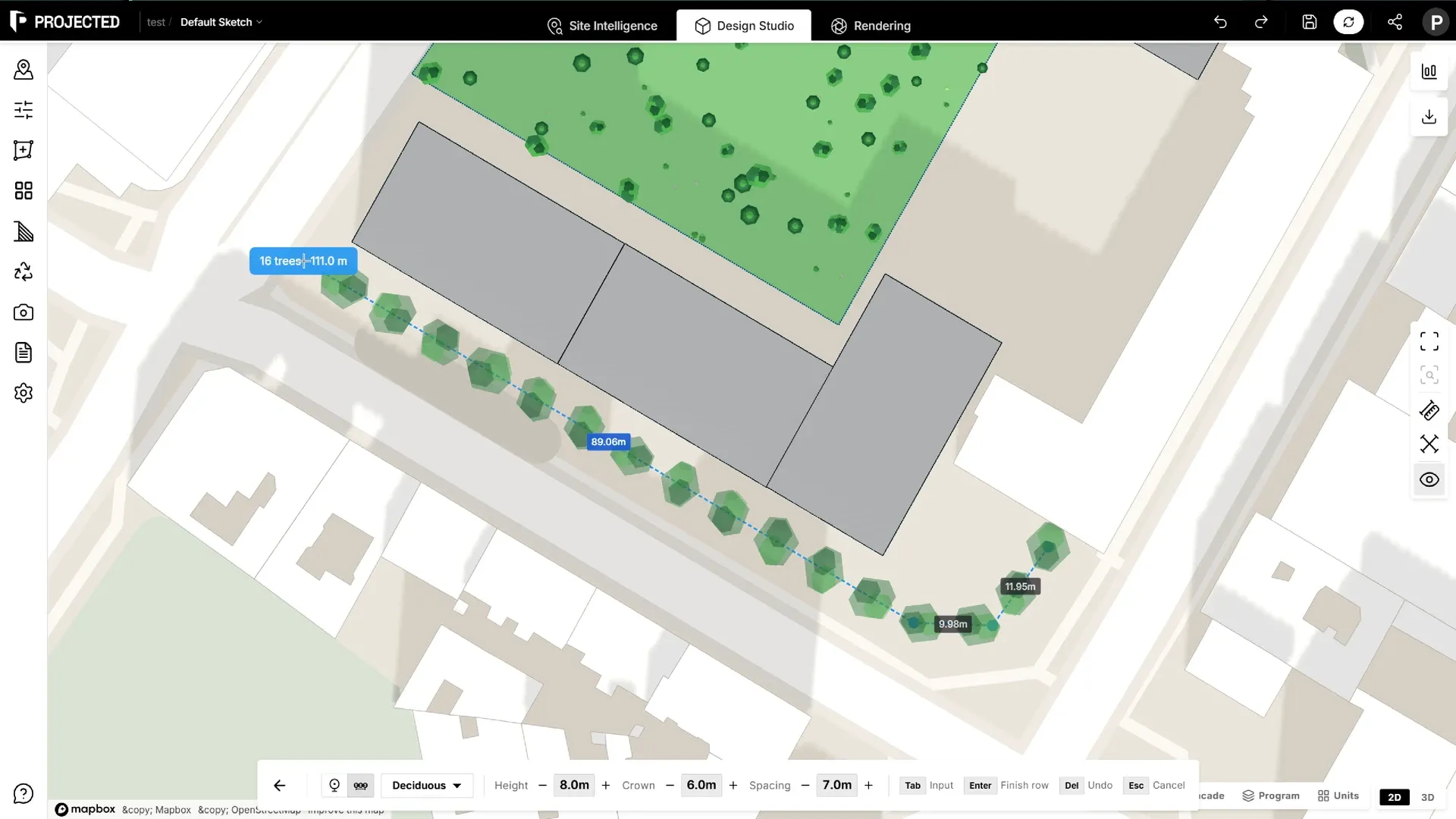
Click Add Trees in the main toolbar. The toolbar then shows the planting options:
| Option | What it does |
|---|---|
| Single / Row | Plant trees one click at a time, or along a line (hover the buttons for their names) |
| Type | Deciduous, Conifer or Columnar |
| Height | Height of the trees, from 1 to 40 m |
| Crown | Diameter of the crown, from 0.5 to 20 m |
| Spacing | Distance between trees in a row, from 1 to 50 m (Row only) |
Changing the type resets the height and crown to that type’s usual size:
| Type | Height | Crown |
|---|---|---|
| Deciduous | 8 m | 5 m |
| Conifer | 10 m | 4 m |
| Columnar | 10 m | 2.5 m |
Each tree varies slightly in size and orientation, so a row looks planted rather than copied.
Planting single trees
- Choose Single, then set the type and size.
- Click on the ground wherever you want a tree. A preview tree follows the cursor.
- Press Delete to remove the last tree you placed.
- Press Esc or Enter when you are done. The trees you planted are selected.
Trees placed in one go with the same settings form one planting, which you select, edit and delete as a group. Change the type, height or crown between clicks to start a new planting.
Planting a row
- Choose Row, then set the type, size and Spacing.
- Click to place the points of the line the trees follow. The line can turn corners.
- Preview trees appear along the line as you draw, with the number of trees and the length of the row next to the cursor.
- Press Enter, or double-click, to finish the row.
The first tree sits at the start of the line, then one every Spacing metres along it, corners included.
While drawing:
- Press Tab to type the exact length and angle of the next segment.
- Hold Shift to snap the segment to standard angles.
- Press Delete to remove the last point.
- Press Esc to clear the line, and Esc again to leave the tool.
The tool stays open after each row, so you can draw the next one straight away.
Editing trees
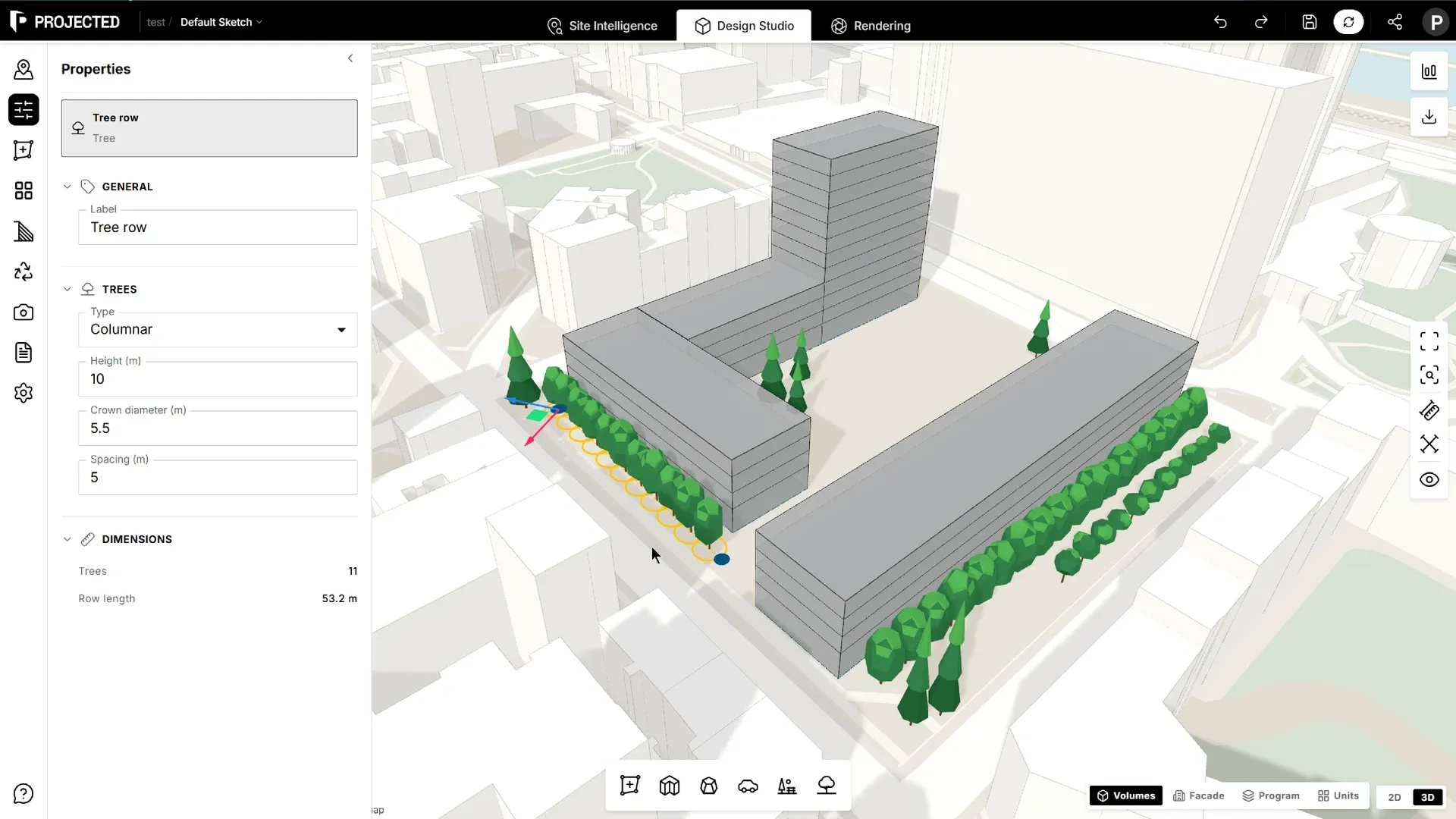
Click any tree of a planting to select it. Each tree shows its crown footprint as a ring, and markers show the points you can move: each tree of a single planting, or each point of a row’s line.
- Move one tree, or one point of a row: click its marker, then drag the arrows or the square that appear. A row spreads its trees again along the new line.
- Remove a tree, or a point of a row: click its marker and press Delete. A planting keeps at least one tree, and a row at least two points.
- Move the whole planting: drag it with the move arrows, as for any other element.
- Delete the planting: select it, with no marker active, and press Delete.
Properties shows the planting’s label, type, height, crown diameter and, for a row, its spacing. Change them there to update every tree of the planting at once. It also shows the number of trees and the length of the row.
Where trees appear
| Where | What you see |
|---|---|
| 3D view and shadow study | The trees and their shadows |
| AI rendering | Trees are part of the model sent for the render |
| PDF reports | Trees in the model views and shadow diagrams |
| GLB and Rhino exports | Trees on the Design::Trees layer. In Rhino, each planting carries its number of trees, type, height and crown as user text. |
Trees do not count towards the green area or the green ratio, which come from parks and green islands, and they are not drawn on the DXF site plan.
Tip: For street trees, draw the row along the kerb with a spacing of 8 to 12 m, a common range for urban street planting.