

Volumes
Free-form massing: draw any footprint, extrude it, push and pull its faces, then split it into floors.
Volumes are free-form masses. Use them for shapes the spine-based buildings can’t draw: towers on irregular footprints, stepped forms, podiums or quick envelope studies.
Drawing a volume
- Click Add Volume in the main toolbar.
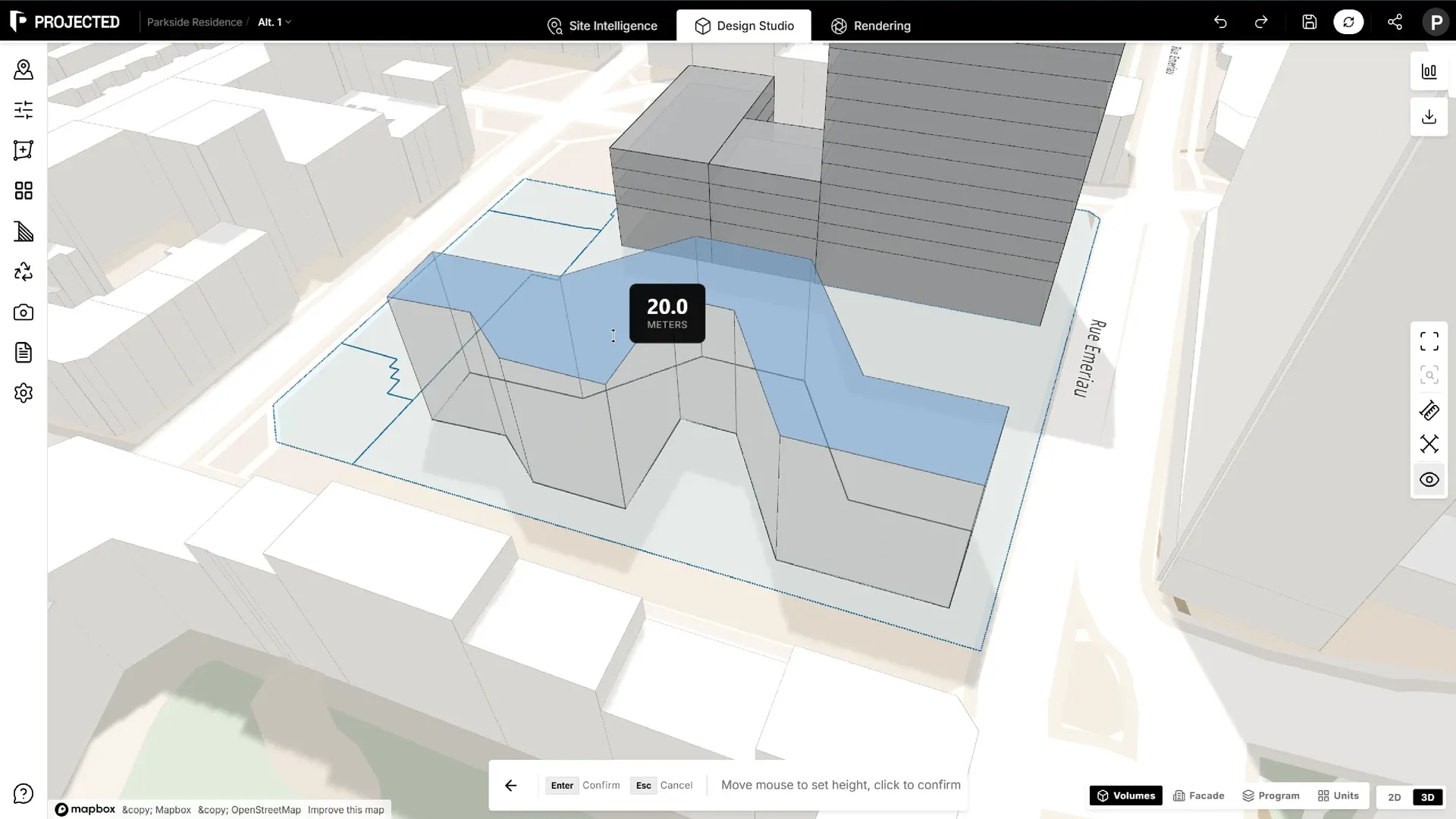
- Click to place the corners of the footprint (at least 4 points). Press Tab, or click Input, for exact lengths and angles.
- Close the shape, then move the mouse to set the height and click to confirm.
Editing a volume
Double-click a volume to edit it. The rest of the scene dims and the editing toolbar appears with three tools:
| Tool | What it does |
|---|---|
| Push/Pull | Click a face and drag it in or out. Pull the top face to change the height, a side face to extend the footprint. |
| Edit Polygon | Move, add or delete the footprint’s points. Click an edge to add a point; select a point and press Delete to remove it. |
| Split Floors | Divide the volume into floors. Set the number of floors, or use Equal Floors, then choose Apply as Floors. |
Press Tab to switch tools. Ctrl+Z undoes steps inside the edit.
When you’re done, click Done. Restore Original brings the volume back to the shape it had when you started editing. If you leave with unsaved changes, the editor asks whether to keep editing or discard them.
Volumes and floors
Once split, each level becomes a floor you can select, with its own height and use, shown in the Program view.
Tip: For figures, reports and the carbon analysis, model the final design with buildings. Volumes are best for quick form-finding.