

Site Context
Control the map around your site: base map, context layers, terrain and imported 3D models.
Open Site Context from the left rail, in Design Studio or Site Intelligence.
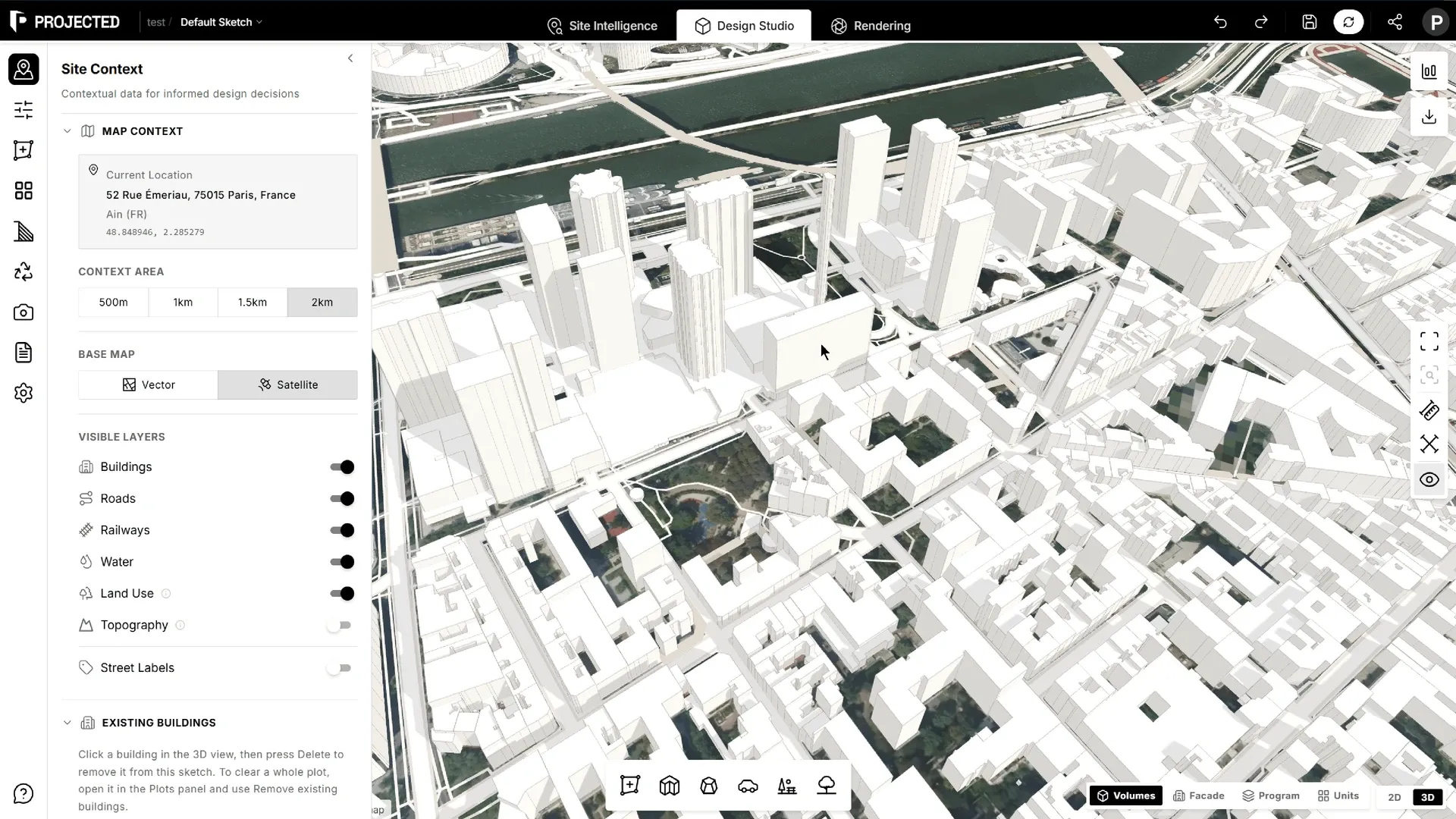
Location
Current Location shows the project’s address and coordinates. The location is set when you create the project and stays fixed. To study another site, create a new project.
Context area
The context area is the square of surroundings loaded around the site: 500 m, 1 km, 1.5 km or 2 km. A larger area shows more of the city but takes longer to load and to export.
Base map
Choose the map under your design:
- Vector: a clean, light map.
- Satellite: aerial imagery.
Visible layers
Turn each layer of the context on or off:
| Layer | Shows |
|---|---|
| Buildings | Surrounding buildings in 3D, with their heights |
| Roads | The street network |
| Water | Rivers, lakes and the sea |
| Land Use | Parks, grass and other land classifications |
| Topography | Elevation contour lines from terrain data |
| Street Labels | Street names |
The surrounding buildings also cast shadows in the shadow study, and can be included in exports.
While the surroundings load, a Loading surroundings indicator above the main toolbar shows the progress. If part of the map fails to load, it says so and offers Retry.
Existing buildings
When your project replaces buildings that stand on the site today, remove them from the context.
One building:
- In Design Studio, click a surrounding building in the 3D or 2D view. It is highlighted, and Properties shows it as an Existing building, with its type, height and OpenStreetMap id.
- Press Delete, or click Remove building.
Every building on a plot: open the plot in the Plots panel, then click Remove existing buildings. This removes the surrounding buildings with at least half of their footprint on the plot.
Each removal shows a notification with Undo. Removed buildings are listed under Existing buildings in the Site Context panel, where you can Restore them one by one or Restore all.
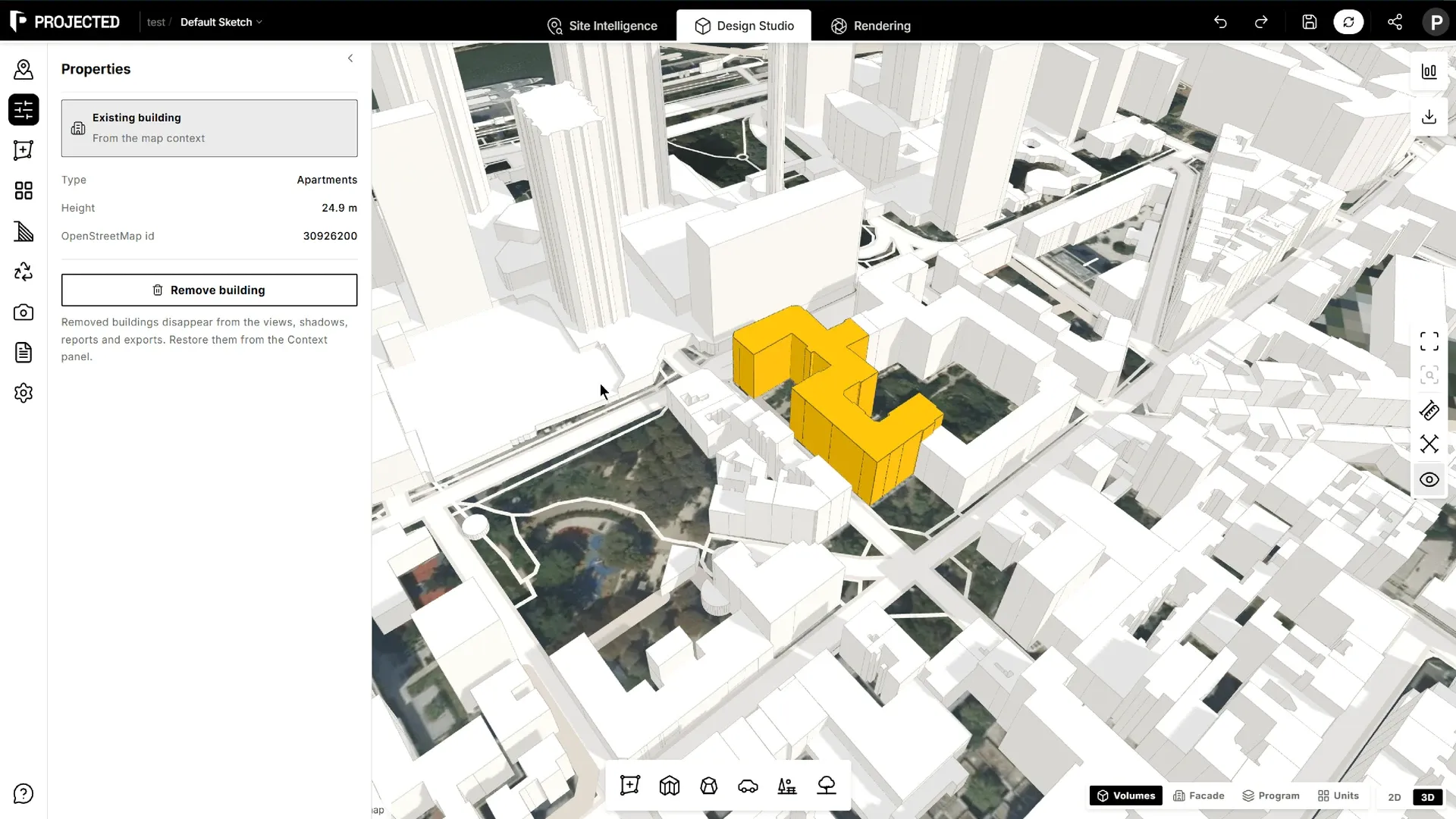
Removed buildings disappear from the 3D view, the shadow study, reports and exports. The removal is saved with the sketch, so other sketches of the project keep the full context.
Note: Removing a building only changes your model, not the map data. A building drawn as several parts on the map is removed as a whole.
Imported 3D context
Bring in your own 3D model of the surroundings, for example a survey or a neighbouring project:
- Click Import 3D File.
- Drop a GLB, OBJ or 3DM file (up to 50 MB), or click to browse.
- Give it a display name and choose the file’s up axis: Y-up or Z-up.
- Click Import.
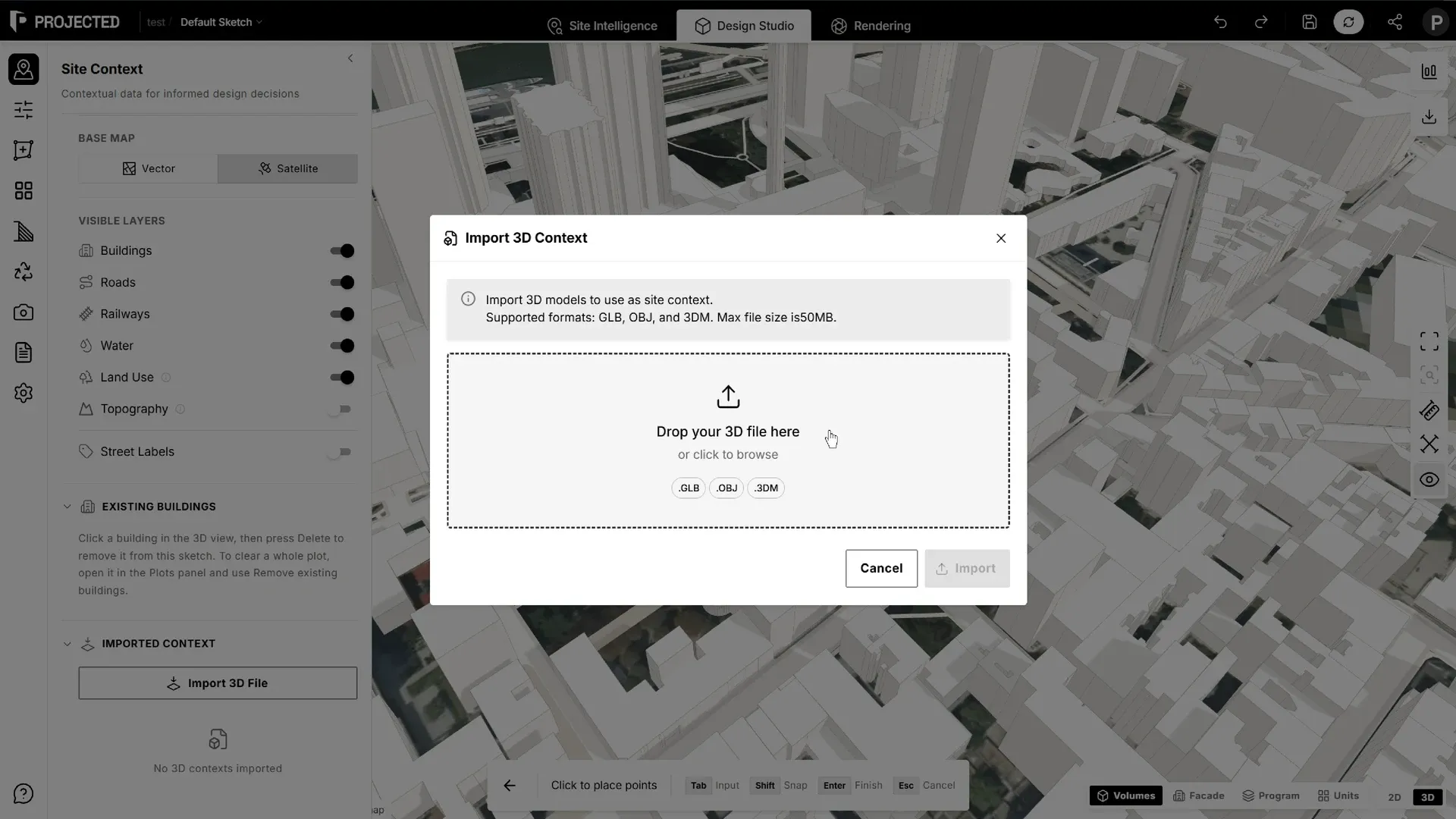
Imported models are listed under Imported Context, where you can show, hide or remove them.